Run repeatable Android workflows with longarm batch tasks
- Metaphor Projects
- Application
- 06 Jul, 2026
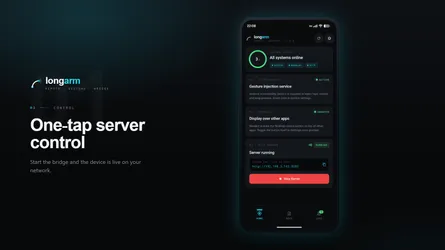
longarm now supports batch tasks: saved Android automation flows that can run more than one action at a time.
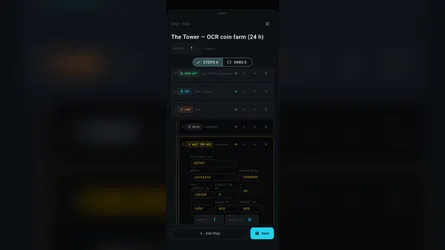
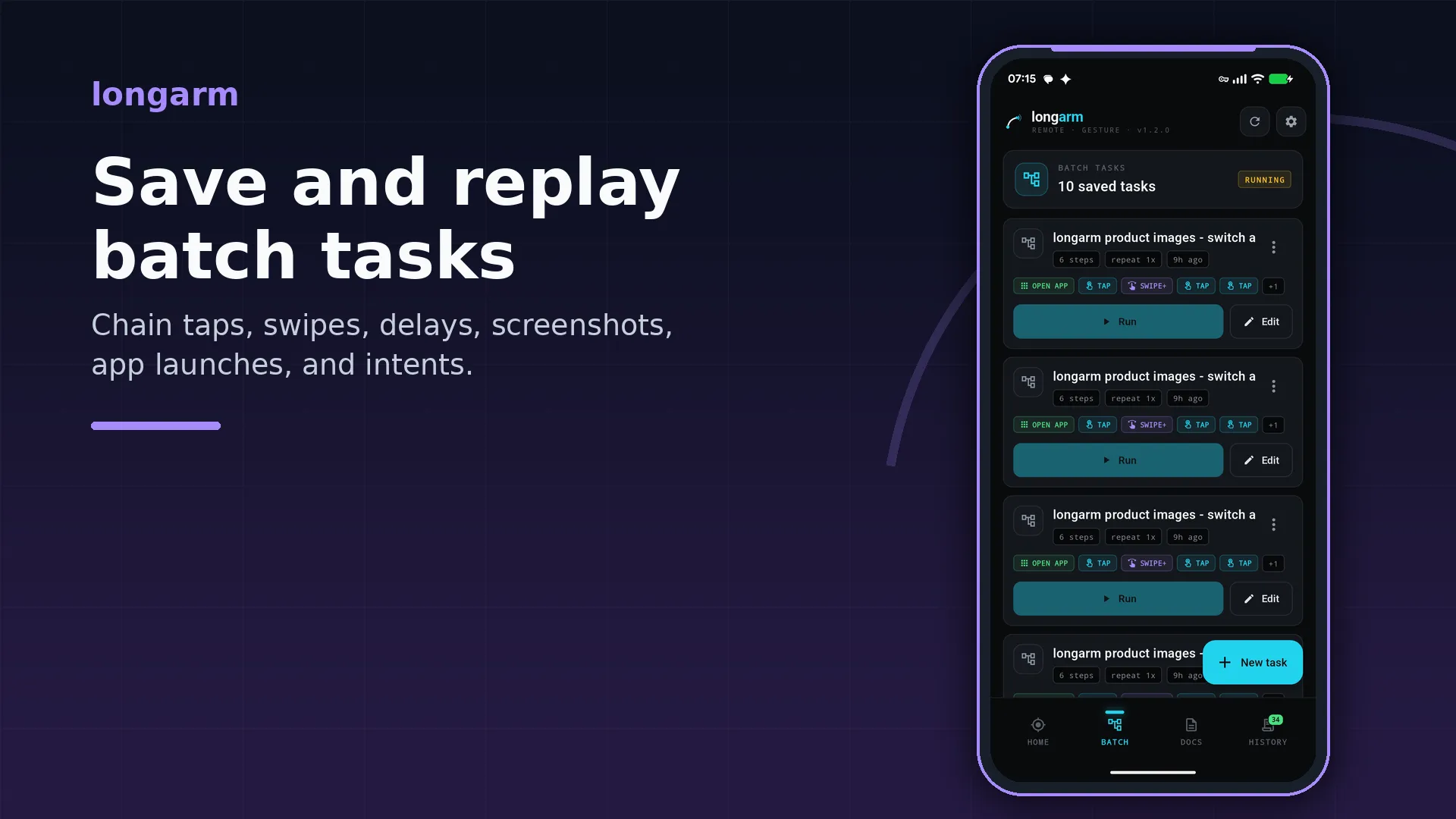
Instead of sending a separate request for every tap, delay, app launch, or screenshot, you can group those steps into one named task. Run it from the Batch tab when you are on the device, trigger it over the HTTP API from a script, or let an MCP-compatible agent list, save, run, and inspect batch tasks as tools.
What batch tasks add
The first version of longarm focused on direct remote control: start the local HTTP server, send a gesture request, capture a screenshot, and keep the device visible from your desktop workflow.
Batch tasks make that control repeatable.
A batch task can include:
- taps, long-presses, swipes, pinches, rotations, and two-finger swipes
- delays between steps
- screenshots during the run
- app launches by Android package name
- Android intents for deeper app or system flows
- variables for values reused across steps
- loops for repeated child steps
That means the useful unit is no longer only “tap this coordinate”. It can be “open this app, wait for it to load, scroll the feed, capture the result, then keep a run record.”
Built for real workflows
Batch tasks are useful when the same Android flow needs to be repeated many times:
- collect the same screenshots after each app build
- drive a QA smoke test on a real device
- open a target app and move it into a known state before manual testing
- automate setup steps that are too device-specific for an emulator
- give an AI agent a higher-level action instead of many fragile individual gestures
Each run is tracked in history with status, progress, messages, and captured screenshots. The run starts asynchronously and returns a runId, so scripts and agents can poll history without keeping a long HTTP request open.
Only one batch task runs at a time. If another task is already active, longarm returns a conflict instead of mixing two automation flows on the same screen.
Run from the app, HTTP, or MCP
The Batch tab is the easiest way to create and run tasks directly on the device. It is useful for building a flow once, naming it, and replaying it later.
The HTTP API is better when the task belongs to a desktop script, CI helper, or local automation tool. You can create saved tasks with /api/batch, run a saved task with /api/batch/<id>/run, or run an inline task immediately with /api/batch/run.
The MCP server exposes the same concept to AI agents. Tools such as batch_list, batch_save, batch_run, batch_run_inline, batch_status, and batch_history_get let an agent work with complete Android workflows instead of manually composing every low-level screen action.
Small Python example
This example starts an inline batch task that opens Android Settings, waits for it to load, captures a screenshot, and polls the run history until the task finishes.
Replace BASE_URL with the address shown in longarm. If your server uses an auth token, replace TOKEN with the token shown in the app.
import time
import requests

BASE_URL = "http://192.168.1.10:8080"
TOKEN = "secret"

headers = {
    "Authorization": f"Bearer {TOKEN}",
    "Content-Type": "application/json",
}

task = {
    "name": "Open Settings and capture",
    "steps": [
        {
            "type": "open_app",
            "params": {"packageName": "com.android.settings"},
            "delayAfterMs": 2000,
        },
        {
            "type": "screenshot",
            "params": {"scale": 1},
        },
    ],
}

run = requests.post(
    f"{BASE_URL}/api/batch/run",
    headers=headers,
    json=task,
    timeout=10,
).json()

run_id = run["runId"]
print("started", run_id)

while True:
    history = requests.get(
        f"{BASE_URL}/api/batch/history/{run_id}",
        headers=headers,
        timeout=10,
    ).json()

    print(history["status"], history.get("message", ""))

    if history["status"] != "processing":
        break

    time.sleep(1)
When the run finishes, the history entry includes progress and any screenshot references captured during the task. Screenshot file downloads and zip export are available from the history endpoints when longarm Plus is active.
Why it matters
Real-device automation often fails because every script has to rediscover the same setup steps. Batch tasks move those steps closer to the device and give them a stable name, a run history, and remote control surfaces through HTTP and MCP.
That makes longarm more practical for day-to-day Android automation: build a flow once, replay it from wherever you work, and keep the result visible enough to debug.